Artificial Intelligence is changing the way we edit images. Nano Banana, officially known as Gemini 2.5 Flash Image model, is a powerful AI tool developed by Google. It has gained huge popularity among designers and creative professionals who enjoy experimenting with AI prompts for editing and content creation.
For years, Photoshop has been the go-to tool for designers. But traditional manual editing often required hours of effort and skill. Now, thanks to AI generative technology, those days are gone. With Google Nano Banana, Photoshop users can enjoy quick, accurate, and creative edits directly inside their favorite software.
This guide will walk you step by step through the process of installing and using Nano Banana inside Photoshop.
In this guide, we will cover everything in detail:
- What Nano Banana is
- What you need to start
- How to set it up inside Photoshop
- Step-by-step editing process
- Real-world examples
- Pro tips for better results
🔹 What is Nano Banana?
Nano Banana is an AI image editing model by Google. It can create or edit images based on simple text instructions.
Instead of doing manual work with brushes and layers, you just tell the AI:
- “Change the background to a night sky full of stars.”
- “Make the shirt green.”
- “Add a mountain behind the house.”
Nano Banana will do the work in seconds.
It saves a lot of time and allows you to be more creative.
🔹 What You Need Before Starting
Before we jump into Photoshop, let’s prepare everything:
- Photoshop installed (latest version recommended).
- Replicate account: This is the website that provides access to the AI models. You must:
- Sign up using your GitHub account.
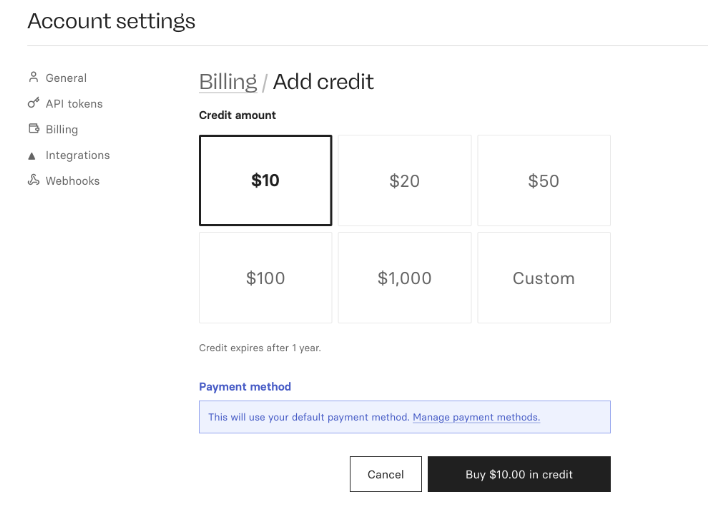
- Add at least $10 credit. With this, you can generate about 250 images.
- Turn off auto-reload so your card isn’t charged automatically.
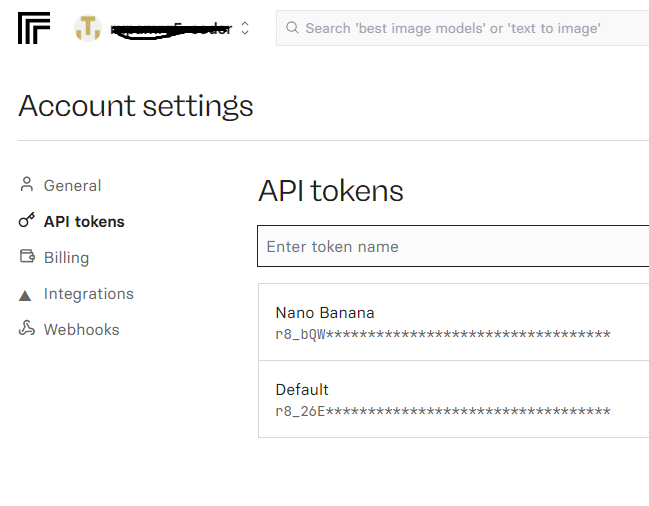
- Create an API Token in your Replicate account settings (this is like a password that lets Photoshop connect to AI).
- Gumroad purchase: Buy the script file (
.jsx) from Rob de Winter’s Gumroad page for around $9. - Windows/Mac adjustments:
- On Windows, sometimes antivirus or firewall blocks the script. You may need to disable them temporarily or run Photoshop as Administrator.
- On Mac, if API issues appear, resetting Photoshop preferences usually solves it.
💡 Keep your internet stable. AI edits are processed online.
Step-by-step Guide To Use Nano Banana Inside Photoshop
Here is the step-by-step guide to use Gemini Nano Banana Ai inside Photoshop.
1. Sign In to Replicate & Create an API Token
Replicate is a platform that allows anyone to run AI models through an API. To connect Nano Banana with Photoshop:
a) Sign up on Replicate .
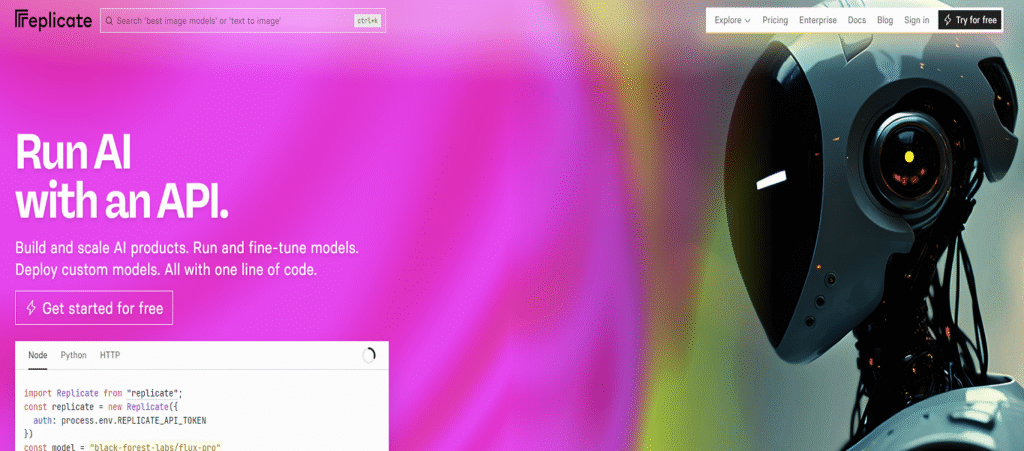
b) Now Click on Get Started for Free. You will be redirected to a new page.
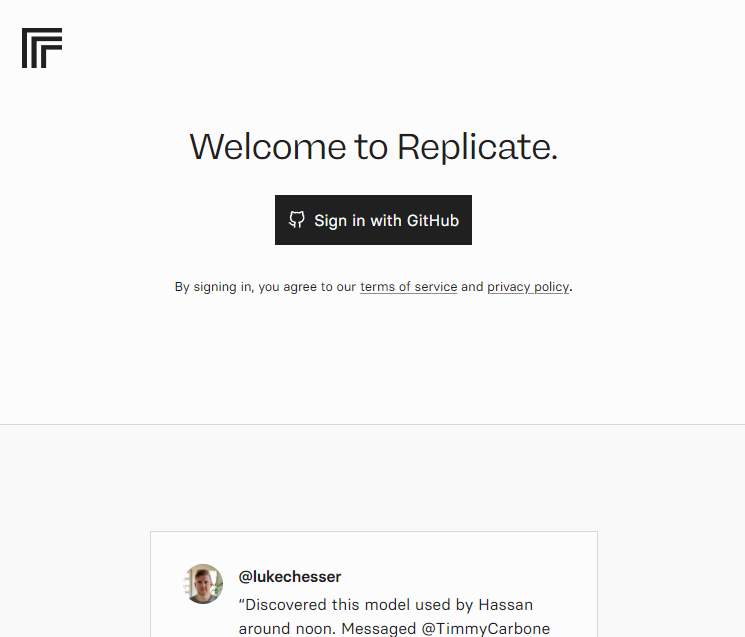
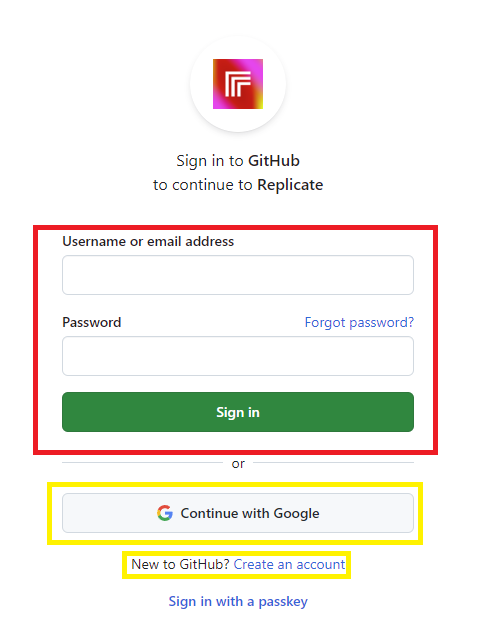
C) After that Click Sign in with GitHub. If you do not have a GitHub account don’t worry, you create a new account or you can directly sign in using your Google Account.
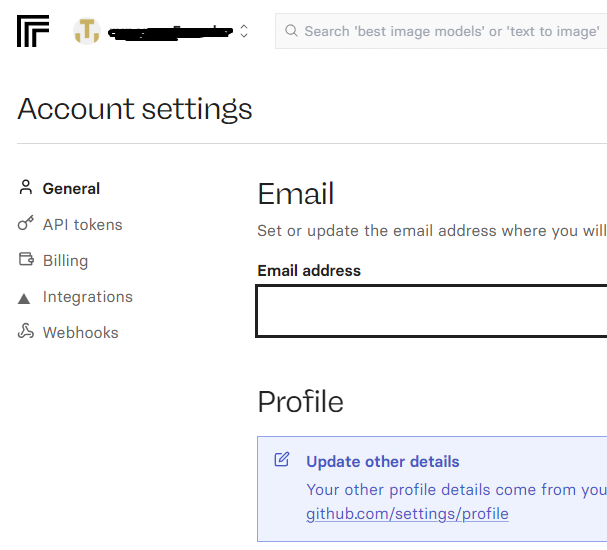
d) Now Go to Account Settings and click on API Tokens.
e) Create a new token and give it a name, for example “Nano Banana”.
f) Go to the Billing section and Add credit at least $10 credit. This is enough for around 250 edits, making it affordable to start with.
Buy the Nano Banana Photoshop Script
Currently, the only way to use Nano Banana in Photoshop is with a custom-made script that lets you create AI edits directly inside Photoshop.
1. Visit the official Nano Banana Flux Photoshop Script website and purchase the script.
2. After purchase, you will receive a file with the extension .jsx.
3. Copy this file into Photoshop’s Scripts folder:
- Windows:
C:\Program Files\Adobe\Adobe Photoshop [version]\Presets\Scripts\ - macOS:
/Applications/Adobe Photoshop [version]/Presets/Scripts/
4. Now Restart Photoshop (and your computer if needed).
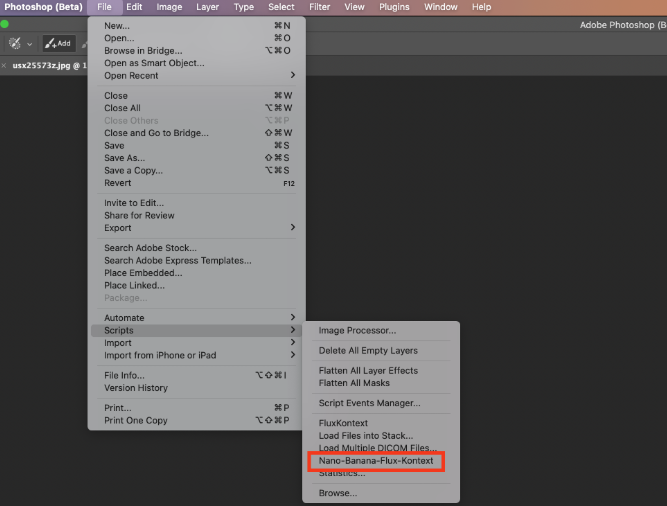
5. The script will now appear under:
- File → Scripts → Nano-Banana-Flux-Kontext
Configure the Nano Banana Plugin
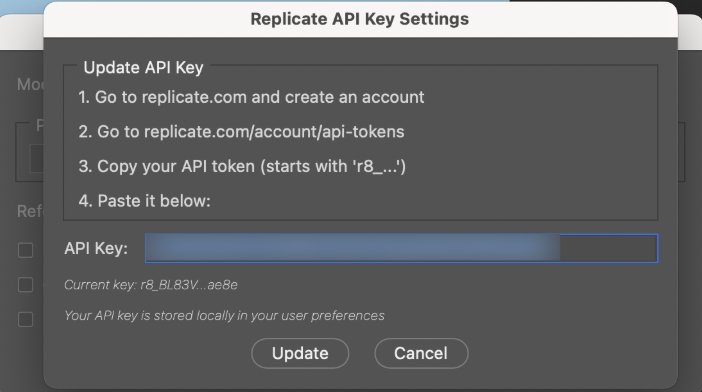
When you open the script for the first time, a Settings window will appear.
- On Windows, you might see an error message saying “API key isn’t valid.” In most cases, clicking Update or OK fixes the issue immediately.
- Paste your Replicate API token into the field.
Run Your First AI Edit with Nano Banana-Photoshop Plugin
Now the fun begins! You can make your first AI edit inside Photoshop:
- The edited result will appear as a new layer, keeping your original image safe.
- Open an image in Photoshop.
- Make a selection of the area you want to edit (e.g., a shirt, object, or background).
- Go to File → Scripts → Nano-Banana-Flux-Kontext.
- Type a short, specific prompt (e.g., “Change the shirt color to red cotton fabric with soft lighting”).
- Select your model:
- Nano Banana (Gemini) for fast, general edits.
- Flux Kontext Pro for smart, context-aware changes.
- Flux Kontext Max for advanced edits like typography and detailed textures.
- Click Generate.
Tips for Better Results with Nano Banana-Photoshop Plugin
Assign a shortcut:
Go to Photoshop’s Keyboard Shortcuts settings, navigate to
File → Scripts → Nano-Banana-Flux-Kontext, and set a custom shortcut for quick access.
Keep prompts short and clear: Mention material, color, and lighting.
Be extra specific with Flux Kontext: It requires more detail compared to Nano Banana.
Test both Flux modes:
- Pro works for most general cases.
- Max is stronger for typography, lighting, and detailed edits.
Upscale results if the generated area looks soft or small—this ensures high-quality output.
Conclusion
Nano Banana brings the power of AI directly into Photoshop, making editing faster, easier, and more creative. Whether you want to change colors, replace objects, or enhance details, this tool saves time and gives realistic results with just a prompt.
For designers, this is the perfect blend of Photoshop’s control and AI’s creativity—a must-have for anyone looking to speed up their workflow.
you may use nano banana photoshop plugins and latest seedream 4.0 plugins in https://www.psnanobanana.site